Total Pageviews

Monday, June 28, 2010

Questions people ask before buying a POS

Last blog I tackled just a few of the questions that people ask once they have our SP-1 POS system.  Since I have been out doing trade shows over the last few months, I've tried to pay attention to what questions we are asked by people looking to buy a POS as well.

Outside of the obvious ones about ease of use, price and functionality, there are some questions that we get fairly commonly.

  • Gift Cards:  Are they free?  Do they work as reward cards?  Yes.  Our gift card services are free and included in the software.  The cards work as a gift, prepaid, discount and reward card.  This is one of the best ways to gather marketing information as well.   I covered some of this in an earlier blog.
  • Quickbooks:  Is there an interface?  How do I get the information out and to my accountant or bookkeeper?  Our Quickbooks interface exports the information out where it can be transferred via email or flash drive (usb device).  We do it this way because the majority of our customers have Quickbooks installed in a location other than their store.  
  • Training?  This is a great question we are asked all the time at shows!  Yes we provide training.  We typically offer a full year of software support and training with every system we sell.  Our Customer Service Technicians can train remotely with GotoMeeting and Logmein Rescue tools.  That eliminates the need for a costly on-site visit.  If on-site is really required, we can supply that as well.
  • Can I use remote printers or monitors?  More importantly can I control where the items go?  To us this is a simple thing and one we may sometimes neglect when talking about SP-1.  We do have the ability to use multiple printers or remote monitors.  These can be used for food or beverage service.  The great thing about SP-1 is that we can determine where the items go - sandwich to the sandwich printer, grill to the grill printer, coffee to a barista printers etc. 
  • Does the system support multiple tax rates?  I'm not sure why this comes up often but we do it.  We support five tax rates per menu group as well as non-taxable sales.
  • Can I add my own pictures?   We do have a way to show you how to add your own pictures to  SP-1. This is a pretty cool way to personalize your SP-1 system with logo'd items
  • Is customer tracking available?  Completely - we can create customer profiles, track 10 phone numbers and email addresses, four physical addresses and more.  This also allows you to tie in marketing to your customers. 
There you go, a little over a half dozen popular questions!  


Contact us at:
SelbySoft
Mike Spence
800-454-4434
Sales@SelbySoft.com
http://www.selbysoft.com/
8326 Woodland Ave. E
Puyallup Wa 98371

Wednesday, June 23, 2010

Two Trade Show Follow Up

In the last couple of weeks, I have attended two trade shows.  These were my last two until October and they are aways an eye opener.

Trade shows are a fun part of my life in a lot of ways as they remind me just how many people are committed to these industries.  It's always a great recharge for me as well because people get a chance to see our passion for our customers and the products that we sell.

To us, one of the really interesting things that come up is the questions people ask.  There are really two sets of questions. . . Ones that people ask before they buy a POS and ones that they ask after they already have SP-1. 

So, now that we are back in the office let's cover some of the questions that we were asked by people that have already bought SP-1:
Do you have to have all those reports on the Business Summary every day?
No - you can default the sub-reports that are run with the business summary.  Simply check them in Reports | Reports Setup 1
How do I easily see the credit card tips at the end of the shift or day?
SP-1 can automatically calculate how much cash is removed from the drawer because of Credit Card Tips - Check Reports | Reports Setup 2 | Convert CC Tip to Cash
Am I set for California Overtime calculations?
Yes, there is a specific switch for the overtime calculations in California.  That can be found in Reports | Reports Setup 2 | California Overtime Calculation.
Does SP-1 support retail?  
Yes - we have the capability to support barcode scanners and printers for barcoding in SP-1

Does SP-1 support inventory control?
Yes!  We have a full inventory control system!  Cost of good sold analysis, food and beverage portion control and variances are all tracked.

Can I have a non-taxable customer?
Create either a customer for each incident or a generic "non-tax" customer and then make sure the taxable button is not checked.  These sales are reported separately on the business summary.

Next time I'll cover some of the questions that we are asked before people make a purchase!
Contact us at:
SelbySoft
Mike Spence
800-454-4434
Sales@SelbySoft.com
http://www.selbysoft.com/
8326 Woodland Ave. E
Puyallup Wa 98371

Tuesday, June 8, 2010

Thoughts on Tracking Sales

I have attended one trade show and am on my way to the next this week.

During these shows I normally give a presentation on how to use technology to track and increase sales.
It always amazes me how excited people get when they figure out how to use these tools to help enhance the service and training in the store as well as ultimately the full experience the customer receives.

What happens next is curious. A certain percentage of people forget the reasons that they originally were excited about the tools and stop really using them. I typically will talk about a number of methods to accomplish this:

Forced modifiers to help your employees introduce new options, increase order accuracy and even up sell.
Introducing remote monitors and printers to help aid with cutting down on theft, increase order accuracy, and finally just make things easier for your crew.
Tracking and implementing discounts and coupons and then using the online tools like twitter, facebook, and foursquare to promote your store.
Tracking menu categories and seeing what changes need to be made. Really looking at if you need to eliminate drinks etc.
Inventory control and cogs tracking.
Theft controls like audit, gross sales by employee, discounts by employees.

The above are just some of the highlights of my topics. All of these are relatively easy to accomplish with our POS.   So if you have not looked at these items in a while, take some time to revisit what you are doing.

Contact us at:
SelbySoft, inc.
Mike Spence
800-454-4434
Sales@SelbySoft.com
http://www.selbysoft.com/
8326 Woodland Ave. E
Puyallup Wa 98371

Monday, May 24, 2010

Online Backups

Backups, Backups, Backups (You Can't Say It Enough)!

Be honest, you don't backup regularly do you?  We know it's tough to admit out loud but experience shows that most of you don't run your backups.  To those of you who do, kudos and a question - when is the last time you checked it??

Customer opens DVD-RW drive and in place of a backup disk - a music cd.
Customer goes to restore a backup and finds that the disk was full a year ago!
Tech asks customer about backup. Customer responds with - what does that mean?
When asked about backups, customer responds with "we do one every year"!

These are real world scenarios that our support department addresses every day.  These don't even include the people that have fires (yes it happens), hurricanes (sand and water do not help computers), employees that damage machines (employee quits and kicks the machine over), theft (people steal the whole computer), and so on.    And we all know that when you need the backup - you really need it!  It's much easier to convince your insurance company with copies of all your sales history readily accessible. 
Are you taking advantage of our Online Backup?  Do you even know it exists?  Did you know it is FREE while on a support plan?  

If not, you are missing out on a fantastic part of our support!  

A couple of years ago SelbySoft thought about this long and hard.  We came up with an online backup and now offer that to every single customer on a support plan free of charge!  
This service allows you to sign up and have your information transmitted from your physical store location to our secure server at SelbySoft.  The transfer happens automatically at 3am every night regardless of employee interaction.  This allows us to insure that in the event of a catastrophic failure (lightning, fire etc) we still have a copy of your information! 

Now, this does not mean that we want you stop doing any backups in the store!  Remember, your SP-1 system can (and usually is) setup to perform a backup on site in two ways.  First, we copy all of your information from the main computer to a second computer in the location and then we copy the information to your cd/dvd backup as well.  These are all great ways to insure you have a full system backup.

Remember - Backup, Backup, Backup! And if you have any questions. . . Call us.

Contact us at:
SelbySoft
Mike Spence
800-454-4434
Sales@SelbySoft.com
http://www.selbysoft.com/
8326 Woodland Ave. E
Puyallup Wa 98371

Friday, May 14, 2010

Cash Drawers, Theft and Accountability

Cash Drawers, Theft and Employee Accountability

Every day here at SelbySoft, we receive calls asking about shortages in the cash drawer.  While a number of these are simple mistakes by the crew, theft is an issue as well.  If we can make our cash handling employees accountable for the mistakes and shortages, then we are on our way to eliminating them.  

So, the question is how can we help?   It all starts by deciding who has access to cash in drawers and how we can minimize that.  

Let's start by defining how you probably handle the drawer in your location:
  • Do you allow anyone in the store to handle the cash? 
  • Do you have a dedicated cashier that must ring up every order?
  • Do you have a couple people that you trust? 
All of the above work but only if handled properly.  The basic problem in most stores is that there are just too many hands in the drawer.  Then, when the drawer is short - who do you look at?

Let's talk about how we can make it better and more secure with SP-1

First, we lock down the cash drawer.  In SP-1 you can assign a cash drawer to an employee.  This helps insure employee accountability because only that employee can access the cash.  

The inconvenience with this is that the cashier may not always be at the front counter when the customer is ready to order.  With SP-1 we can make this an easier situation in two ways:
  • Set your system to allow anyone to start a ticket but only the approved employee code to close out a ticket.  This provides you with the flexibility of having every employee being able to start an order (and then place it on hold) but only having one employee cash that customer out.
  • Use multiple cash drawers.  SP-1 allows up to five cash drawers per station!  With this, you are actually assigning 1-5 employees to their own drawers.  If employee one takes an order, drawer one opens, employee two takes an order and drawer two opens.
With either method, you will be on your way to eliminating the potential for shortages in your drawer and increasing employee accountability.


Contact us at:
SelbySoft
Mike Spence
800-454-4434
Sales@SelbySoft.com
http://www.selbysoft.com/
8326 Woodland Ave. E
Puyallup Wa 98371

Thursday, May 6, 2010

Order Processing

Order Processing

Talk about a little used but incredibly powerful part of SP-1.  This included feature does typically require an additional user license and computer to take advantage of it but the rewards can certainly outweigh the costs!

So, what is it?  Order Processing allows you more effectively control your make (food or drink) line and insure better customer service.  This is accomplished by effectively tracking the time it takes to prepare items. As a side, this system can also provide a reasonably accurate quote time printed on a customer receipt or displayed on a screen.
It's all accomplished by sending every order (or basing it simply on one menu item) to an Order Processing monitor that is located by the  make line.

These orders appear on that monitor as shown below:

So, once the crew has gone through and made the order (based on the printer/monitor) then they will mark the line off the Order Processing monitor.     The numbers on the far right show how long it has been since the order was placed.  Once the order is marked off, SP-1 can calculate a quote time based that! 

Think about it. . . you would then have an accurate time to quote your customers when they ask how long a wait is!

There are more benefits to this system however:  Order Processing gives you the ability to see how well your make line is doing.

This happens because as the items are made and ready to be handed to the customer or put in the oven, the employee will mark that the order is done.  This then let's us know what the average time it takes to make an order is. 


The above is a sample report from the Order Processing system.  We provide, by the menu group and by the hour, the average, low and high quote times for the day. 

We have customers that love this option as it allows them to focus on making the kitchen or barista line more responsible for getting orders out quickly and eliminating the bottlenecks in the order process. 


Contact us at:
SelbySoft
Mike Spence
800-454-4434
Sales@SelbySoft.com
WWW.SelbySoft.com
8326 Woodland Ave. E
Puyallup Wa 98371

Tuesday, April 20, 2010

Kitchen and Barista Monitors

We are back from the SCAA show in Anaheim! It was a great show and a good time catching up with customers and new clients.
While down there, we had a number of people ask us about the Barista / Kitchen monitor systems. It seems that dropped paper, lost and greasy slips are causing people to say enough and to start looking for a different solution.
The monitors work by being placed in a spot that is easy to see and visible to the person making the order as well as the rest of the staff. An advantage with this is the fact that the monitor is visible by all and it helps the manger and owner keep an eye on how the make line / barista section of the location is doing. This helps eliminate bottlenecks and improves communication and flow in the store.
Additionally, these monitors have the ability to time how long an order is taking. If an order hits the deadline then the time starts to flash! This gives an instant notification that the order is taking too long and also helps that staff member stay on top of things.
These monitors can be arranged to show the orders in variety of ways. For instance, drinks on top, food on bottom; carry out on top, delivery on bottom and so on.
Contact us at: SelbySoft
Mike Spence 800-454-4434 Sales@SelbySoft.com WWW.SelbySoft.com 8326 Woodland Ave. E Puyallup Wa 98371

Monday, April 12, 2010

Gift Card Comps!

We are headed to the SCAA this week in Anaheim Ca! Looking forward to catching up with friends and clients again out there.
I was talking with my support department last week and they explained that we are getting a number of people who are using comped gift cards to fix mistakes or boost marketing with their stores. It's a great idea. . . Instead of handing a free drink out the window, give a customer a gift card that they can treat as cash and you can track.

So, how do you comp the card? The best way is to setup a discount that works for the gift cards only. The example below is of one that is a flat $5.00 discount. Notice that we have a price table of $5.00 making this a set discount. You could also add a security level so only managers / owners have access to this. When a gift card is sold and this discount applied it will discount that gift card by a flat $5.00. It does not matter if it is applied to a new or existing card.

Now the next example is an open discount: Notice that the price table is blank. This means that the employee can enter any amount they want for the discount! Pretty dangerous if you don't have a security level on this! However, there is another way to make this type of discount easy to use - Enter an amount in the Max Discount Amt field. When a dollar amount is entered here, it sets a MAXIMUM amount that the employee can discount. For example, the price is blank and an employee goes to give a $20 gift card away- the system will tell them that it is limited to $5.00 and will not allow it.

This can also be a great way to help empower employees to correct mistakes, yet still track what is going on and eliminate abuses.

Contact us at: SelbySoft
Mike Spence 800-454-4434 Sales@SelbySoft.com WWW.SelbySoft.com 8326 Woodland Ave. E Puyallup Wa 98371

Thursday, April 1, 2010

Paid Outs

I know it seems like a simple topic but do you track your paid outs? That little paid out button in SP-1 is actually designed to be pretty full featured!

We know that a paid out is anytime money leaves the drawer. Once you select the Paid Out button, you have the ability to add a description for paid out event and a spot to enter in a price. This then records what the description was and at the end of the transaction you have the ability to assign this paid out to a customer.

We do this to make sure that you have the ability to know where that paid out was used and why!

The Paid Out button does double duty however in the fact that it is also used to record Gift Card Refunds. If you allow the ability to refund money to a gift card, you can turn this part on in System Setup. You can also setup the maximum allowed refund amount on gift cards. And don't worry - SP-1 will not allow you to refund more than is on the card!

When it comes to reporting, remember that paid outs are part of the Business Summary report. You can also use the Ticket History report to break out a single paid out type or look at all paid outs by detail! There you go. . . A quick introduction to Paid Outs! Contact us at: SelbySoft
Mike Spence 800-454-4434 Sales@SelbySoft.com WWW.SelbySoft.com 8326 Woodland Ave. E Puyallup Wa 98371

Friday, March 19, 2010

Online Ordering

Well, we are finally there! The last couple weeks have really been playing catch up after our couple of shows. We recently started introducing our online ordering interface and have been signing people up! This interface works directly with the SP-1 to grab the orders off the online site and process them in the background. In otherwords, once you are signed up, the customer orders online and then it prints in the store. So, why OLO? Because it will make you more money. . .
  • Customers spend more time on your menu. . . How many people truly know all the items you sell now? We all know that customers feel rushed on the phone.
  • Customer order more. . . Because they see your whole menu, they are more likely to order outside their typical comfort zone.
  • Cut your labor costs. . . Imagine, your employees spending less time on the phone and more time focusing on the product.
  • Decrease mistakes. . . The customer ordered it! They are ultimately responsible for the order. The misunderstanding virtually go away!
  • Up-sell. . . Menu upselling is much easier with Online Ordering.

Please call us and ask questions! We can get you started in the process by putting you in touch wiht our online ordering partner and getting you signed up!

Contact us at: SelbySoft Mike Spence 800-454-4434 Sales@SelbySoft.com WWW.SelbySoft.com 8326 Woodland Ave. E Puyallup Wa 98371

Tuesday, March 2, 2010

Blog Post

This week we are exhibiting at Pizza Expo - Tue, Wed, Thur in Vegas! Then Fri, Sat, Sun in NY at the Coffee Fest! See you there! Contact us at: SelbySoft Mike Spence 800-454-4434 Sales@SelbySoft.com WWW.SelbySoft.com 8326 Woodland Ave. E Puyallup Wa 98371

Monday, February 22, 2010

Integrated Credit Card

Who doesn't take credit cards in today's world? We all know the statistics regarding how accepting credit cards will boost your sales and increase average ticket sizes. So, the question is how can we make this more efficient at the store level? By integrating the credit card system and getting rid of those separate units. With a separate unit, the transaction usually goes something like this. . . Employee rings up the order, selects credit cards, selects visa and then swipes the card through the separate terminal. . . at that point the employee enters at least the total and possibly the last four of the credit card, expiration and possibly the cvv. End result? The line is waiting. If you have multiple stations, then you are sharing or buying additional terminals. If it's a phone or delivery order, it gets worse! The employee has to actually write down the information and hand key it in while the customer is on hold. Twice the work and twice the security risk! Now at the end of the night, you have to hope that the totals match, that an employees did not select cash in the POS and then still take a credit card and so on. So how can we make this easier? With our Integrated Secure Credit Card Processing System activated, the whole process is simplified: The employee rings the order up, swipes the card and is done. That's it! Multiple stations? The interface works on all the computers in the location, each station will just swipe it on the monitor. Phone or Delivery orders? Simply type the credit card number directly on the screen and it will process. So there you go. . . A couple ways that integrating your credit card system can make your store more efficient and eliminate headaches for you, your employees and your customers! Contact us at: SelbySoft Mike Spence 800-454-4434 Sales@SelbySoft.com WWW.SelbySoft.com 8326 Woodland Ave. E Puyallup Wa 98371

Tuesday, February 16, 2010

Fingerprint ID

I'm finally back on the blogs for each week . . . We are getting ready for two big shows that are coming up and have had some interest in showing off our Fingerprint ID Security System at these shows. One of the things that we have heard more about in the last year is the incidents of employee theft increasing. So what is a Fingerprint ID System and how does it work? These units are connected to the software and then either sit on the counter or attach to a monitor. They are designed to allow the employee to use any one of their fingers to both clock in to the system and to be used as an id for employee tracking. What this means to you is that you will have a complete piece of mind when dealing with your employees. For instance, you can reduce the incidents for employee time theft easily. So, when the employee wants to have a buddy clock in for him . . . can't happen. But this works both ways. . . If you assign employees to cash drawers (future blog topic?), then the fingerprint helps that employee feel secure. Let's play this out. . . Bob is assigned to a cash drawer - he is the only person that should be handling the money at the counter. Now, Bob walks away and Susie knows his four digit code. She enters that, hits no sale and pockets the cash. Bob get's blamed. So, what if we use the employee swipe card instead? Same scenario. . . Susie walks up, grabs the card Bob left behind, swipes it and steals the money. Bob get's blamed. Finally, let's play this out with a fingerprint. . . Susie walks up and . . . Nothing - she can't open the drawer. Bob is secure in knowing that the cash in the drawer is his responsibility and that it is accurate. So, if you have a fingerprint through us - use it! If not, call us and ask how we can implement it in your location. Contact us at: SelbySoft Mike Spence 800-454-4434 Sales@SelbySoft.com WWW.SelbySoft.com 8326 Woodland Ave. E Puyallup Wa 98371

Monday, January 25, 2010

Employee Time Printing

Do your employees bug you about the time that they work? We have a feature that will allow your employees to see how many hours they worked each time they clock out. So, when an employee clocks out SP-1 will print a receipt with the clock in, clock out and total hours worked as a receipt for the employee! This option can be found in System Setup, Operations:1 and then select Print Employee Hours Summary on Clock Out. Contact us at: SelbySoft Mike Spence 800-454-4434 Sales@SelbySoft.com WWW.SelbySoft.com 8326 Woodland Ave. E Puyallup Wa 98371

Monday, January 18, 2010

Order Confirmation Monitors & Pole Displays

Let's talk about a couple things that are optional (they require a hardware purchase) but that can help you in very significant ways! First, what are they? A Pole Display is something we have all seen - it's a simple display with 2-4 lines mounted on a pole and faces the customer. When items are entered into the POS, the pole displays that total price to the customer. Sometimes these allow for a message to display when the display is not being used. Order Confirmation Monitors are the next evolution in this technology. They are a full screen (usually 15-17") that sits on the counter and provides a full description, price as well as customized messages and pictures that display to the customer. Basically, this provides a more full featured method of showing the customer what they ordered. So, why have them at all? Well, for a number of reasons. . . First and foremost is the perceived value as to employee theft and customer satisfaction. It's hard for an employee to back out of a ticket, void it or change an item and then pocket the money when the customer sees everything that is being done. Aside from employee theft, the OCM (Order Confirmation Monitor) has other advantages. Because it is a full monitor this system can display upsell options and even a slide show that displays when the customer is waiting for their order. These options allow you to market directly to your customer as they are ordering. Contact us at: SelbySoft Mike Spence 800-454-4434 Sales@SelbySoft.com WWW.SelbySoft.com 8326 Woodland Ave. E Puyallup Wa 98371

Tuesday, December 29, 2009

Routine Maintenance

Would you like your computers to last?
Silly question I know but many of our customers never bother to take care of the equipment! It's really not that hard and will extend the life of the equipment significantly. Here are some basic maintenance tips (please make sure the power is off and disconnected before doing any of this!) :

Backups - Get an internet connection and sign up to have your data backed up online through SelbySoft! It's FREE if you are on a support plan! Call us for more details about how to do this!

Computers - Usually there are either thumb screws or regular screws holding the case on. Two screws and the top of the case slides off. A can of compressed air is a godsend to computers! Just spray it out - take care to hit all the fans (but be careful to not spin the fans so much that they whine). These fans are the most important part to keep clean - they control the heat in the system. While you are at it, open the cd or dvd rom and hit it with a quick burst of air!

Printers - Think about it, your printers are incredibly important. They are also very easy to clean. Pull the paper out, leave the lid open and gently shake it while upside down. Then blow any paper out that you can. Check for bits of paper stuck under the cutter etc. Finally DON'T use anything but authorized ribbons! They really can damage the printer.

Monitors - Touch screens are pretty simple. The biggest thing is to check the cables periodically and make sure the cables are tight. Clean the screen by spraying non-abrasive cleaner (windex etc) on a towel and wipe them. Make sure that employees are not using pens or anything pointy to ring up orders.

So, there you go. . . A few ways to extend the life of your system!

Contact us at: SelbySoft Mike Spence 800-454-4434 Sales@SelbySoft.com WWW.SelbySoft.com 8326 Woodland Ave. E Puyallup Wa 98371
Tuesday, December 22, 2009

Windows Settings for SP-1

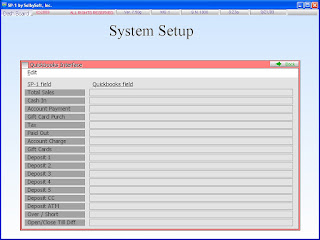
Do you know what the Windows Settings section of SP-1 is for? This is a pretty neat feature in SP-1 that allows you to dictate how SP-1 functions on your computer. Windows Settings are located in System Setup. There are three switches available and these can be controlled by the station. The thought behind this setting is that you may not want employees to have access to the Windows OS in the background. The switches operate as follows: Movable: If movable is selected, then SP-1 opens in the standard size and you will have the ability to resize the screen, move the window around, minimize etc. This is great for the office station or if you want to switch between SP-1 and another program. Maximize: If this is selected, and we recommend that it is, then SP-1 takes over the entire screen. There is no option to move SP-1, shrink it or change it in any other way. This is the recommended selection because it does not allow your employees to exit SP-1. Both: If you select both of these switches, then SP-1 will allow you to move the screen around but will start in the largest screen size possible. Check Spooler: If you select this, and it should be checked, then SP-1 will make sure that the print spooling is currently running and attempt to sync the time between stations. If your print spooling is NOT running this switch will allow SP-1 to display a warning to let you know printing may not function!

So, there you go. . . A quick lesson on a slightly obscure (but valuable) part of SP-1!

Contact us at: SelbySoft Mike Spence 800-454-4434 Sales@SelbySoft.com WWW.SelbySoft.com 8326 Woodland Ave. E Puyallup Wa 98371
Tuesday, December 15, 2009

Security & Job Classes

Security Levels! I know it's not the most exciting topic but I am amazed by the number of stores that have open levels of security for their employees. Security is important so you can remain on top of who is doing what and when. After all, you lock your doors right? SP-1 has 11 levels of security available. The first ten are labeled 0 through 9 with 9 being the highest. The 11th level is by leaving the security code blank. Let's tackle some of these. . . The blank security code is the most interesting to start with. By entering an employee and leaving their security code blank, you are telling SP-1 that this employee will ONLY be allowed to clock in and out. They cannot access any other area of the program. This is great for having cleaning staff or anyone else that you track time with but is not actually working on the POS. Levels 0 through 9 are used to assign what an employee can and can't do. If a zero is assigned to an employee, that employee only has access to the order screen (Order Entry) in SP-1. Levels 1 - 8 can be assigned to employees that may need access to any of the other areas of SP-1. Our general suggestion is to assign employees as follows: Owner - 9 Manager -5 Shift Supervisor - 3 Employee - 0 It is VERY important that only the owner has a 9 on their account. This leaves you with some levels for growth and for multiple stores. Once you have assigned the security level, you would place that code in the system security section on each of the items you want to control. Remember that if you enter a number, then anyone with that level or higher could access that item. So a 3 can do anything a 0-2 can and so on. Contact us at: SelbySoft Mike Spence 800-454-4434 Sales@SelbySoft.com WWW.SelbySoft.com 8326 Woodland Ave. E Puyallup Wa 98371

Tuesday, December 8, 2009

Coupons & Discounts

Coupons and Discounts - sounds easy, but do you know the difference and why having both makes SP-1 more powerful? First let's talk about the differences between the two: Discounts: A discount in SP-1 is a dollar or percent off a ticket or item. The advantage is that it is a little more generic. For example, you could have a $1.00 off the ticket, 10% off a ticket or 15% discount off one line item on the ticket. All of these discounts are able to be set by the menu group, group size or specialty. The great thing with a discount is that it is very flexible and allows for multiple controls. Discounts can be security coded so they are only available when authorized. Some sample discounts are: employee, fire department, senior citizen etc. You can also use these to track problems and mistakes. For example, setup a mismade order, dropped item, returned item, comped etc. This is a great way to track what is happening in the store. Lastly, don't forget that you can assign a discount to a customers delivery file or to their gift and reward card!

C0upons: Coupons operate a little differently. A coupon is more specific than the discounts. For instance, you can bundle items with coupons. If you offer a large pizza with two toppings, breadsticks and a 2 liter of soda for a specific price a coupon is the way to go. You can even set the price so each item is accounted for in the reporting. Another example is to have a coupon that sets the specific modifiers allowed. So, you might have a 16oz Latte with two extra flavor shots allowed. The coupon would only then work on that size etc.

Remember that all coupons and discounts can be day and time specific! Contact us at: Mike Spence SelbySoft 800-454-4434 Sales@SelbySoft.com WWW.SelbySoft.com 8326 Woodland Ave. E Puyallup Wa 98371

Monday, November 23, 2009

Separate Checks & Splitting Tickets

With the holidays upon us, we see more people going out and ordering in large groups. Did you know that SP-1 has a great way to handle splitting a ticket or a check?

There are two ways to talk about splitting checks. . . With and without our table service ability.

Table Service

If you have table service in your locations and are assigning seats to the people ordering, then the splitting of checks is very, very easy! Once you have started the ticket, you can select the seat that the items are going to by selecting the Seat/Separate Check button. Select the next seat and order their items - keep doing this until you have every one's order. Now that you have the order in and have sent it to the kitchen, we come to the end of the meal - the customer now asks for the check and wants it split!

With SP-1, you will simply open the Table and be presented with the Seat / Separate check screen. Now you will select the Move Seat button and select first the seat you want to move and then the check you want it applied to. It's that easy and all the items on that seat get moved over. Remember, you can move multiple seats to the same check as well.

If you are not using the seating portion of the table service, then things change slightly. You would first take all the orders on Seat 1. Once the group wants to separate the check, then you can use the move units button to move items from the ticket to the proper seat and separate check.

Non-Table Service

If you are not using table service, then the whole seat issue goes out the window! Instead, you simply take the order like normal to begin with. Once you are ready to split the checks, you will select the Seat/Separate check button. This screen shows you the different checks available. You would then select the Move Units button and move the items to the appropriate check.

This can be a powerful way to take multiple orders from one group and then split the tickets. Each ticket will be paid individually and able to be cashed out with any of the normal methods.

Hopefully this clears up some of the ways that separate checks can be done. Please call us with any questions on this and one of our customer service reps can explain in more detail!

Contact us at: SelbySoft

Mike Spence 800-454-4434 Sales@SelbySoft.com WWW.SelbySoft.com 8326 Woodland Ave. E Puyallup Wa 98371

Monday, November 16, 2009

Non-Taxable Sales

This morning I had an email asking about non-taxable sales and I thought it would make a good blog topic! Basically there are two things we talk about with non-taxable sales. . . The first is Tax Exempt situations. These are the situations where you are selling to a non-taxable organization, group or person. For instance, church, school, people from Alaska or Oregon. With this, you can actually create a customer entry for each person by adding a customer in Order Entry and then making sure the Taxable switch is not selected. This will allow you to track each non-taxable order made by that individual. Now, if this is a very rare event for you, then you might want to create one customer and call it Tax Exempt. This gives you the ability to immediately handle the order in the future without going through the trouble of entering a customer. These transactions will show up on the Business Summary under Tax Exempt Sales. The second scenario is when you have specific items that are non-taxable. SP-1 handles up to 5 different tax rates and then also a sixth when the tax is set to 0. So, on your Menu Groups, you have the ability to set each menu item to a specific tax (or 0 tax in this case) and to do this by the order type! For example, you might have an item that you have to charge tax on when it is prepared in house but not for to-go orders. These taxes also show on the Business Summary under the Tax Rates as None. I hope this helps. Contact us at: SelbySoft Mike Spence 800-454-4434 Sales@SelbySoft.com WWW.SelbySoft.com 8326 Woodland Ave. E Puyallup Wa 98371

Monday, November 9, 2009

Inactive Items

Are you offering seasonal or holiday items? Every year we get the questions of what to do after the season or holidy has passed! SP-1 has a built in switch to help with this. You may have noticed a the switch in Master Files called Inactive. When this is selected, the item no longer shows up on the menu but is still in the system. The really neat thing is that this switch affects all the items below the level you are on. So if you turn off an ingredient it does not show up anymore. If you turn off a Menu Group, then the group size, specialties and ingredients for that Menu Group are hidden as well. This can be a great switch for making menu changes and even for designing a new menu group before implementing it for your staff. Simply turn it on and test it and then turn it off if you need to make more changes to the menu. Contact us at: SelbySoft Mike Spence 800-454-4434 Sales@SelbySoft.com WWW.SelbySoft.com 8326 Woodland Ave. E Puyallup Wa 98371

Wednesday, November 4, 2009

Dashboard Functionality

I was talking to my support department recently and they explained that a number of our customers are unaware that we have an integrated Dashboard feature in our software!
So, the Dashboard is the topic today. This feature showed up first in early versions of 7.50. If you don't have it, call our support department and get updated!
The Dashboard is a feature that allows owners and managers to see a quick overview of the stores sales. The screen below is a sample of the initial Dashboard:

As you can see, this is a great way to see a quick snapshot of things! Total sales, tickets, voids etc are all shown on this quickly!

Selecting the hourly detail button provides the screen below:

As you can see, this allows for comparisons from today vrs last week, last month and last year by the hour!

Now, a little known feature on this is that you can use as well. If you highlight an hourly or section you will get the following:

As you can see, this provides you with the sales figures for that hour and the percentage that you are up or down over the last week, month and year.
Contact us at: SelbySoft
Mike Spence 800-454-4434 Sales@SelbySoft.com WWW.SelbySoft.com 8326 Woodland Ave. E Puyallup Wa 98371

Monday, October 26, 2009

Little Known Retail Feature

For those of you that have the retail control system in SP-1, did you know that you can assign those items to buttons? For instance. . . Let's say that you sell gelato or ice cream by the ounce or pound or coffee. Well, it's a little difficult to barcode that! So, instead of remembering a complicated sku number or code assign it to a button in order entry! This is a really easy and convenient way to pull up and sell retail items without a barcode. The way this works is by assigning the retail item to the menu group. Since it shows up as a menu group, it is always on the main screen. It's as great way to access a very commonly used retail item. To set this up, simply create the retail item and then create a menu group with the name *retail*upccode (replace upc code with the actual code). Then when you select this button it pulls up that item immediately. While we are on this, don't forget that we offer the ability to not only barcode items for use with a scanner but that we can actually print the customized barcodes for you through a dedicated barcode printer. This allows you to print the barcodes as you receive the retail into the store. Contact us at: SelbySoft Mike@SelbySoft.com 800-454-4434 Sales@SelbySoft.com WWW.SelbySoft.com 8326 Woodland Ave. E Puyallup Wa 98371

Monday, October 19, 2009

Accounts In SP-1

Do you ever bill customers for product? If so, did you know that SP-1 has an extensive billing system built into the software. Last week I was talking to a customer that did not know we did this! So. . . . In SP-1 you can specify per customer if they are allowed to run an account tab. Once this is selected, you will have an account payment button and an account charge button appear. If you are near a number of businesses, schools etc - this can be a great method of picking up more business. Setup the account so that when that business orders, you can just bill them! Once someone orders and you are on the ticket complete screen, simply hit account button to add the total to their account bill. SP-1 will track this for you. One suggestion: In the remarks, enter the ticket number / name of the person running the account. This makes it easier to answer the account billing questions. Now the business owes you money. The next step in this is the run the billing report and billing cycle. In the reports, you will see all the options for this. SP-1 will even run a bill that can be printed and then folded and put in a windowed envelope. This makes life easier as far as sending the bills. Once the check comes in, look up the customer and select the account payment button. Apply the payment and you are done! Hopefully this brief introduction to accounts helps you understand how to use this to capture some of more of your customers business. While these factories and schools like to place big orders, we also know that the accountant and bookkeepers at these places like easy billing systems! Contact us at: SelbySoft Mike Spence 800-454-4434 Sales@SelbySoft.com WWW.SelbySoft.com 8326 Woodland Ave. E Puyallup Wa 98371

Friday, October 9, 2009

Gift Card Promotion and Marketing

A little different topic this time on the blog. Recently we have seen a big upswing in people that are asking about how to use SP-1 to help drive more business through the store. Part of this is through the strong gift card program and with the holidays around the corner it's time to start thinking about this. Are you using gift cards? If not, you are missing out on one of the best ways to increase sales and cash flow. Also, if you are using them, let's make sure it's not by just plopping them on the counter and expecting them to sell themselves! First let's define what we are talking about. . . A plastic card (with no swipe fees or monthly fees when used with SP-1) that can be used in different ways: 1) Traditional gift - I buy it and give it away. 2) Prepaid - I buy and continue to keep it charged for my own use. 3) Rewards - The same card can be used to keep a buy 10 get 1 free or other promotion. 4) Customer Discount card - When the card is used a discount is automatically applied. This is ALL the same card. So first, this card is a great marketing opportunity for you - it's a "billboard" in the customers pocket. So what can be done with these to help you make more money? Let's skip the usual arguments (although they are valid) about how people spend more with a gift card than cash and what percent of cards are lost. We know that the gift cards are a good idea - the question is how to move them. Here are some ideas that we have had over the years to move gift cards and boost sales. 1) Instant gratification: "Hi, would you like that drink free?" or "Would you like to have that sandwich / pizza 1/2 off?"; "would you like some free breadsticks with that order?". Once the customer answers yes - tell them they only need to buy a $25 gift card for that. The little chain store that cuts my hair has a deal that if I buy a $50 gift card I get a free haircut - I do it every couple months.

2) This one is a little obvious but I'll mention it anyway: Buy a $25 gift card and pay only $20!

3) Friend cards: Give your employees or even customers small dollar amount gift cards to use as a promotion. They could be $1 -$3 each. Tell them this is to hand out to their Friends.

4) Discount or VIP Cards: Purchase a large enough gift card and receive a discount for the rest of the year. This discount could be worked many ways - only on certain days, certain items, certain order types etc. If someone buys a $100 / $250 / $500 gift card is it worth a 10% / 20% discount?

5) Traditional rewards system: Buy 10 get 1 free.

6) Non-Traditional rewards: Every dollar you spend you get a point. Once you accumulate enough points, you get free or discounted product. I.E. at 50 points you get 25% off next order or a free appetizer / pastry.

So there you are - a half dozen ways to start off the marketing kick on gift and loyalty cards. There are more! If you have a great idea on this - let me know and I'll spread the word.

Contact us at: SelbySoft Mike Spence 800-454-4434 Sales@SelbySoft.com WWW.SelbySoft.com 8326 Woodland Ave. E Puyallup Wa 98371

Monday, October 5, 2009

Audit Tracking

Theft - It's a fact that it happens in your store. It happens in everyones store. Over the years I have seen a ton of methods that employees and managers will use to steal / give away product. Recently in Washington State a fine dining restaurant found out that an employee was using a managers code to void cash transactions. This employee wound up stealing over $30,000 over three years through this method. Think about that - $30k. Now, even if it is only $1k that is still unacceptable! So, this brings us to the question of audit tracking. Are you using your balance till, employee summary, business summay and audit reports? If not, you should be. These are the best ways to see the 'red flags' that we all know about and to catch what is happening. Remember that we show re-opened tickets on the Balance Till - this shows which tickets have been re-opened and which code was used. A good start as to what is going on. Employee Summary - Run this periodically over a timeframe. This will show voids by employee. If one employee has a larger percent of voids as opposed to another then there is something going on. Either that person needs re-training or they are doing something funny. Business summary - each and every day, look at the total number of voids and edited voids. This will show you a total dollar amount that you will be responsible for. Audit reports - This is the absolute best report to run. Remember that this report is not stored inside SP-1 so it is not accessible to the normal employee. This will show you every ticket that has been changed or voided along with who did it, when it was done etc. Please take a look at these on a regular basis! This does not have to be a 'negative' topic - it's just about protecting yourself! Don't hesitate to contact me or our support guys for more information! Contact us at: SelbySoft Mike Spence 800-454-4434 Sales@SelbySoft.com WWW.SelbySoft.com 8326 Woodland Ave. E Puyallup Wa 98371

Tuesday, September 29, 2009

Price Tables

Price tables are a great way to help control pricing and make your life easier. Price tables are a way to assign a three digit code to a specific price. For instance, you may want TOP for topping or FLV for flavor. You can then assign that price table to an item. Where this helps is in the following: Let's say that we have a string of 20 ingredients/modifiers that all have the same price ($.50). You could enter $.50 on each of the 20 items. The only problem is that if you want to change the price on all 20 items you then have to change it 20 times! With a price table, you put the TOP in the price field (20 times the first time). Now when we want to change the price, we just change the price table once and it automatically updates the menu for us. Some more benefits of Price Tables are that they are day and time dependant! For example, if you have an item, discount or coupon that only applies on a certain day - use a price table and it will only work on that day. Further, if the price table is on a coupon or discount then the coupon/discount will not even show up unless it falls in that time! Don't forget about happy hours! You can set pricing based on the time of day! That will allow you to setup items that are discounted during certain times of the day. Price tables can be a great way to change your system menu and to make life easier for yourself! Don't hesitate to call us if you need to! Contact us at: SelbySoft Mike Spence 800-454-4434 Sales@SelbySoft.com WWW.SelbySoft.com 8326 Woodland Ave. E Puyallup Wa 98371

Monday, September 21, 2009

Quickbooks Interface

Before talking about the quickbooks interface, I wanted to mention that some customers have asked me about how to get an automatic blog update. While you can sign up here, you can also email me (mike@selbysoft.com) and I'll email you the blog each time!
Two things involving the QuickBooks interface today. This interface is designed to provide the basic information from the Business Summary in a QuickBooks import file. The setup is under System Setup and is pretty easy. Basically you will enter the account name as you have it in QuickBooks into these spots. If an account name is in " ", then it will be treated as a "class" accounting field.

The file is exported through the Business Summary and is saved in the SP-1 folder. The file is always named QBMMDDYY.IIF (month, day, year). Once the file is exported, you can transfer that to yourself or accountant by email, usb flash drive etc.

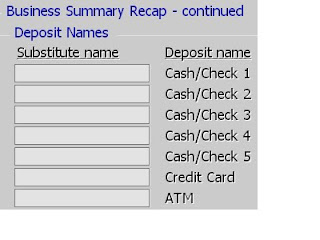
Now there is a new Reports setup available for this as well. You can now rename the deposit name fields to your own fields. For example, you may want to change them to separate out the Amex from Visa/MC in your deposit. This will then export out to QuickBooks as well.

Contact us at: Mike@SelbySoft.com

SelbySoft

800-454-4434 Sales@SelbySoft.com WWW.SelbySoft.com 8326 Woodland Ave. E Puyallup Wa 98371

Monday, September 14, 2009

Printing!

I know, it sounds simple doesn't it? But, we get questions about printing from people before they buy our POS and after the fact! I thought I'd clarify a little bit about our printers. We support physical printers and virtual printers! A physical printer is just that - a real printer sitting somewhere in the store. A virtual printer is simply another ticket or receipt that prints out of a real printer. The reason this is important is becuase it allows for a ton of flexibility. For instance, you may have one physical printer at the front of the store for receipts. Now, you could also create a virtual printer for a barista ticket - this would print out of the physical printer! So, one printer - two tickets. This holds true for a kitchen printer as well. You could have a physical printer that is there for a pizza make line and then a virtual printer for sandwiches and a second virtual printer that has all the items on it for expiditing. This would be three print outs from the same printer. Remember, you can also specify which items (down to the ingredient level) go to which printer and even by the order type. For instance, we have stores that print all items for delivery or drive-thru to one printer and dine-in / carry out to another. On top of this, you can print multiple copies of the same ticket to the printer or even specify that coffee goes to one virtual printer and sandwich to another virtual printer. If you are having any issues with confusion in your location or lack of effiency, call us - we can walk you through setting up a different virtual printer out of your existing printer and help. For example - If you have Coffee and Sandwiches but one printer. Physical printer prints: Reciept for customer Barista ticket (with sandwich on bottom for information) Sandwich ticket (with barista items on bottom for information) Or if you carry Pizza and Subs: Physical printer prints: Receipt for customer Reciept for Driver (assuming delivery) Pizza Ticket (with sandwich on bottom for information) Sandwich ticket (with pizza on bottom for information) Now, in the above you could also simply purchase multiple printers and have: Physical printer - Receipt Physical printer - Pizza Physical printer - Sandwich Physical printer - Delivery. It's all about what makes you the most efficent! Contact us at: Mike Spence SelbySoft 800-454-4434 Sales@SelbySoft.com WWW.SelbySoft.com 8326 Woodland Ave. E Puyallup Wa 98371

Monday, September 7, 2009

On Hold Tickets

What are On-Hold tickets? This question and a couple others was something asked by Rick & Judy from Mountain Mudd. Tickets can be placed on-hold for a number of reasons. . . The first is that the payment is not being made until later and the second is that the ticket has a credit card assigned to it and the tip has not been processed. An on-hold might be: Someone called an order in and it will be paid for when they get there. They are running a tab in the store. They don't have enough money or need to go grab their wallet / purse. The order is in a drive thru and you need to take the next car in line. and so on. . . As you can see, this is a powerful feature. SP-1 allows you to pull these on-hold tickets back off and close them out at anytime. On-hold tickets are designed to be closed by the end of the day. With credit cards (assuming you are processing through the POS and not a separate machine), the credit card is processed immedietly and then put on hold until the tip is added and processed (assuming you are processing tips!). If you don't put a tip the credit card was still sent to the processor. If you leave tickets on-hold, you will notice that the Business Summary at the end of the night will show you in two places that it is on-hold. First at the top of the printed or viewed page and then on red at the bottom of the Business Summary screen. The on-hold ticket is included in the totals on the Business Summary as we have to assume that you closed the ticket out and did not record the total. Hopefully that clears up some things about On-Hold tickets! Contact us at: Mike Spence SelbySoft 800-454-4434 Sales@SelbySoft.com WWW.SelbySoft.com 8326 Woodland Ave. E Puyallup Wa 98371

Monday, August 31, 2009

Saving Reports

Did you know that you can save virtually any of the reports in SP-1 to the disk? Now, what that means is that the reports can be saved in a format that you can then bring to your home or office and review without having to print them off. One of our current customers, Jennifer Horne from Java Angels, asked this recently. Remember that when you go to print a report, SP-1 will give you the option of saving the report to an "Unformatted Disk". When this is selected, you will be prompted for the name. SP-1 ALWAYS saves reports to the SP1 folder on the main drive. For almost all our customers, that will be the F:\SP1 Folder. The extention of the of the file is blank. So if you copy the file from there to a Jump Drive (USB device) you can take it home. Now there is another way to do this that has been poplular as well. Setup a Gmail or Yahoo account and then everyday have the employees start an email and attach the file - then save it as a draft! You can then instantly check that email and see or download the reports at home or the office. Don't forget that Logmein Free is another great option to remotely view the reporting from a location outside the store. Contact us at: Mike Spence SelbySoft, Inc. 800-454-4434 Sales@SelbySoft.com WWW.SelbySoft.com 8326 Woodland Ave. E Puyallup Wa 98371
Friday, August 21, 2009

Business Summary Information!

Over the last couple weeks we have had some questions regarding the Business Summary. As you may know, this is the best report to see what is happening in your store! One of the questions came from a current customer (Ralph from Classic Pizza in Michigan): Ralph wanted to know about splitting the sales into a day and night shift for total sales comparison. Our Business Summary has a the ability to break down the total sales by a day and night part. This is great for seeing where the majority of your business comes from. Also, these numbers break out the total tickets and the average dollar per ticket on the report. This is very useful in figuring out what is happening in the store! Don't forget that you default which reports show up on the Business Summary - this way you can set it up to only have your pertinent reports show on a daily basis. One other item to be aware of is that a portion of this report will be exported to an excel compatible file when you select the XML button. Contact us at: Mike Spence SelbySoft 800-454-4434 Sales@SelbySoft.com WWW.SelbySoft.com 8326 Woodland Ave. E Puyallup Wa 98371

Monday, August 10, 2009

Addendum to Gift Card Tips

Quick addendum to the Tips on Gift Card Blog - Jim @ Campus Pizza suggested that we remind people that you can see your gift card balances by running the Internal Gift Card Report under Customer under Reports! This will show you total outstanding gift card balances by card! Thanks Jim! Contact us at: Mike Spence SelbySoft 800-454-4434 Sales@SelbySoft.com WWW.SelbySoft.com 8326 Woodland Ave. E Puyallup Wa 98371

Friday, August 7, 2009

Ecomms - Communicating with employees

It may be hard to believe but this is a feature that some of our customers don't know about!
Ecomm stands for Employee Communications. Basically it is a built in email system for you to communicate with your employees. Here's a couple examples:
You come into the store in the morning and they forgot to sweep (again!). Now, you know that you probably won't see the employee again for a week so, instead of putting a post it note up, you decide to send an Ecomm!
In SP-1 you write the email, select the date to send it, select if the employee will receive it on clock in only or on clock out as well, select if the employee will be able to respond or if it is only for them to read. When you are done you send the message to the employee or employees.
Now, as the employee clocks in, they are prompted with the message and a random four digit code to show they read the message!
Of course this is all recorded in the Employee Master File so you can verify that the employee read the message.
Contact us at:
Mike Spence SelbySoft 800-454-4434 Sales@SelbySoft.com WWW.SelbySoft.com 8326 Woodland Ave. E Puyallup Wa 98371

Tips on Gift Cards

Do you take tips? Over the last couple years we have been asked by people that take tips to allow those tips to be placed on a gift card as well as a credit card. Well, that ability became possible earlier this year! We added the ability to have a gift card function almost identical to a credit card. So, to walk through this. . . Customer orders something and you go to the Ticket Completion Screen. Select Gift Card and swipe the card. SP-1 will now print a slip with a tip line and signature line right away. When the customer hands that back, hit the tip button and add the tip! Remember - Gift cards are no fee and no swipe charge when used through either SP-1, the Multi-store gift and loyalty corporate package or through our Mercury Payment (credit card referral partner). Contact us at: Mike Spence SelbySoft, Inc 800-454-4434 Sales@SelbySoft.com WWW.SelbySoft.com 8326 Woodland Ave. E Puyallup Wa 98371

Monday, August 3, 2009

Multiple Addresses & Retail Shortcuts

Multiple Delivery / Catering Addresses!
Do you do delivery? How about Catering? If so, are you aware that you can track 10 phone numbers and four addresses total? This is a great option for those of you that do delivery or catering. For example, if someone orders and wants it delivered to a second address - You can enter that address and that will be the delivery/catering address instead of the main one. Also, by storing 10 phone numbers you can have the customers cell, home, office etc all under the same account. This works just as well for those of you that do catering. With factories and large companies you can use the multiple address field to make sure that the order goes to the right department!

Contact us at: Mike Spence SelbySoft, Inc. 800-454-4434 Sales@SelbySoft.com WWW.SelbySoft.com 8326 Woodland Ave. E Puyallup Wa 98371
Monday, July 27, 2009

Custom Colors on Ingredient / Modifiers

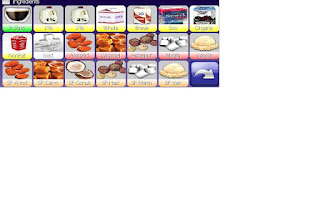
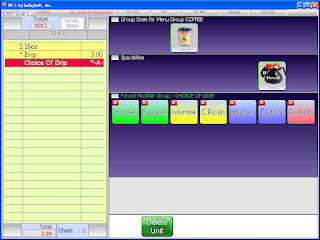
Did you know that you can customize the colors on the ingredient & modifier buttons? SelbySoft has the ability to use ten different colors on those buttons. This can be used to help categorize groups of items. For instance, you might add yellow to all milks or red on all meat items.

Additionally, if you don't have a graphic available for the button, then the button will show with the words centered and the entire button color coded!

Contact us at: SelbySoft 800-454-4434 Sales@SelbySoft.com WWW.SelbySoft.com 8326 Woodland Ave. E Puyallup Wa 98371

Monday, July 20, 2009

New 40 Column Balance Till

New 40 Column Balance Till Report. Version 7.50g and above have a new balance till report available. This is our till report intended for the 40 column receipt printers. This report will make it easier and more convenient for you to close shifts! Thanks for all the suggestions on this from our customers and for the input. Don't hesitate to call our support or sales department for more information YOUR STORE NAME HERE 555-1212 7/20/09 7:52a SHIFT CLOSE Shift# 1 ( 4:00a- 3:40p)   Total Sales: 184.64   Cash: 165.75   Check: 0.00   Credit Cards: 0.00   Account: 0.00   Gift Cards: 108.41   Paid Outs: Description Amount Ticket 100001090 -50.00 0009 100001090 -39.52 0012 ------ --- -89.52 2   Voids: 17.95 (6)   Coupons: None Discounts: Description Qty Amount FIRE DEPARTMENT 2 3.77 ------ 2 3.77     Contact us at: SelbySoft 800-454-4434 Sales@SelbySoft.com WWW.SelbySoft.com 8326 Woodland Ave. E Puyallup Wa 98371

Wednesday, July 15, 2009

Did you know? COUPONS!

Did you know that you can add a coupon to the bottom of your customer receipt? With our SP-1 POS system, you can easily help up sell by creating a custom coupon image and then applying it to the receipt you print! Further - up to THREE coupons can be added for this - they rotate in order! Don't hesitate to contact us for more information on how this can be added to your system. (PS it's free if you are on support and have a thermal printer!) Contact us at: Mike Spence SelbySoft 800-454-4434 Sales@SelbySoft.com WWW.SelbySoft.com 8326 Woodland Ave. E Puyallup Wa 98371

Tuesday, July 14, 2009

Come see us at Coffee Fest Seattle

Don't forget that SelbySoft will be exhibiting at the Coffee Fest in Seattle - September 25, 26, 27th! We have free passes for anyone interested. Contact us at: SelbySoft 800-454-4434 Sales@SelbySoft.com WWW.SelbySoft.com 8326 Woodland Ave. E Puyallup Wa 98371

Wednesday, July 16, 2008

New Gift Card System


Now that our 7.50 version is being released, we have finalized some re-vamping of the gift card system as well.


Those of you who have looked at POS systems before probably realize that most gift card systems only allow you to take one card at a time or load one card at a time.


In the real world, it's common to have a customer want to use three $.50 gift cards and cash to pay for a $3.50 drink.


We have taken some serious time and re-vamped the system to make it work as smoothly as possible.


You can now sell as many gift cards in one transaction as you would like, redeem up to five gift cards at a time and check the balance on the screen with one button.


This is available in our 7.50 update and, of course, to anyone that purchases a new SP-1 For Coffee POS system!


Contact us at:
SelbySoft
800-454-4434
Sales@SelbySoft.com
WWW.SelbySoft.com
8326 Woodland Ave. E
Puyallup Wa 98371